2-Minute Quick Start: Run a Remote Sandbox App Locally
This guide starts where the previous quick start ended.
Now you can already ping home-pc from my-laptop by alias:
fungi ping home-pc
Target peer: home-pc(16Uiu2H........ZC3bdZ)
Ping stream peer=16Uiu2H........ZC3bdZ interval=2000ms (Ctrl+C to stop)
TICK   CONN   DIR      RLY   RTT        ADDR/MSG
0      -      -        -     -          connecting
1      6      outbound no    5ms        /ip4/192.168.x.x/tcp/45189/p2p/16Uiu2H........ZC3bdZ
2      6      outbound no    6ms        /ip4/192.168.x.x/tcp/45189/p2p/16Uiu2H........ZC3bdZ
This means:
my-laptopandhome-pcalready have an encrypted connection.home-pcalready allows inbound control frommy-laptophome-pcis already saved inmy-laptop's address book that allows you directly use thehome-pcalias in later commands.
In this example, you will control home-pc from my-laptop, and the demo app is filebrowser-lite-wasi.
The goal is simple:
- pull a sandboxed app to
home-pc - start it remotely from
my-laptop - open it locally in your browser on
my-laptop
If you want the full model behind
peer,service,catalog, andaccess, see Remote Service Control.
Download The Example Manifest
Download the example manifest filebrowser-lite-wasi.service.yaml on my-laptop.
Or download it from the terminal:
curl -L -O https://fungi.rs/downloads/manifests/filebrowser-lite-wasi.service.yaml
filebrowser-liteis an experimental Fungi demo app based on a fork of filebrowser.filebrowseris a popular open-source web app that provides a file explorer interface to a specified host directory.- The filebrowser-lite fork adds a minimal Rust backend and compiles the app into a WASI component.
Set The Current Peer Context
Tell the CLI that the current remote target is home-pc:
fungi peer use home-pc
Show the current peer context to verify:
fungi peer current
After this, later remote commands can omit --peer home-pc.
Launch The Remote Sandbox App
Run these three commands on my-laptop:
fungi peer admin service pull ./filebrowser-lite-wasi.service.yaml
fungi peer admin service start filebrowser-lite-wasi
fungi access open filebrowser-lite-wasi
What happens:
pullsends the manifest tohome-pcand lets it fetch the WASI artifactstartruns the app onhome-pcaccess opencreates a local entry point and opens the browser automatically
Done.
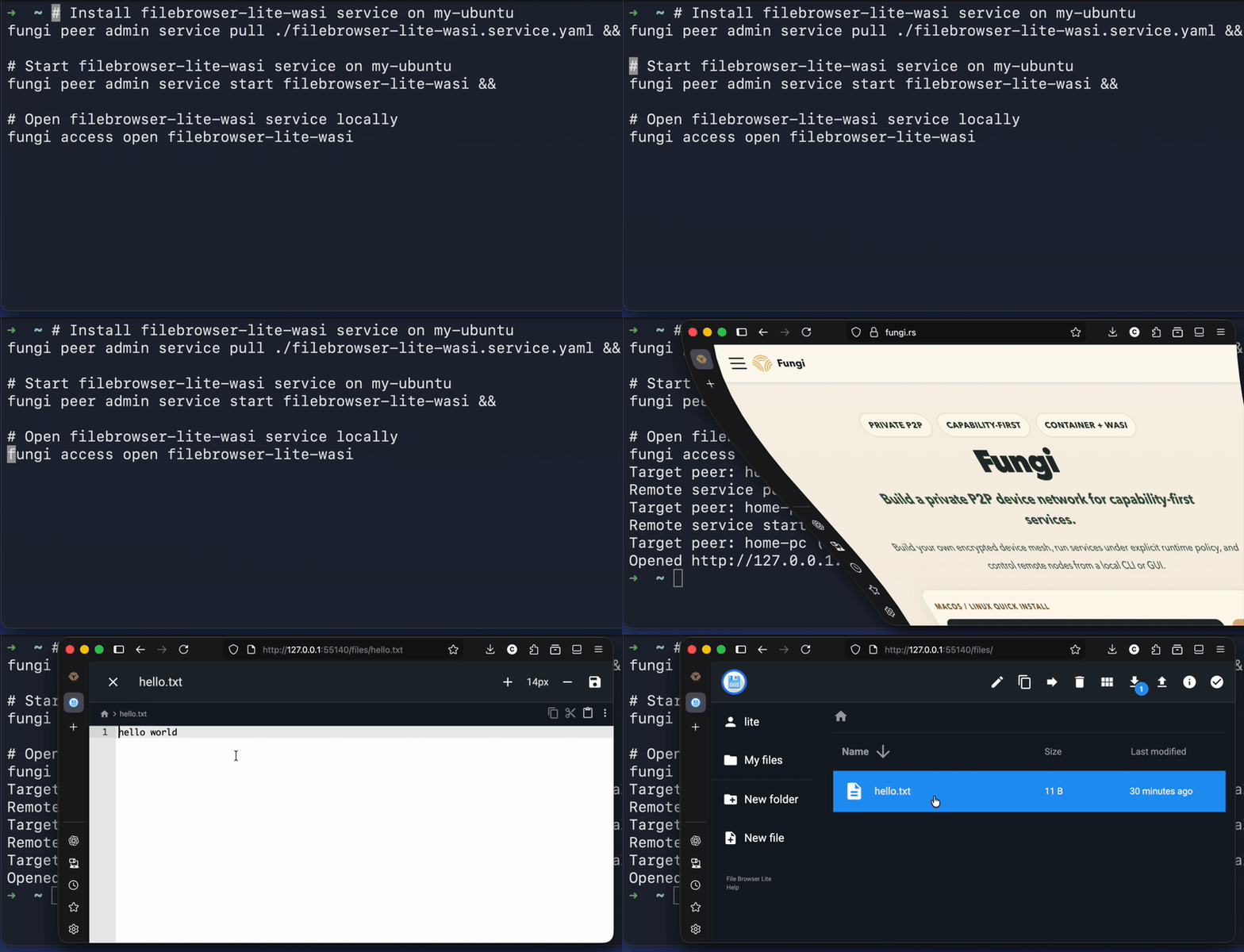
The app runs on home-pc, but you use it from my-laptop through the encrypted Fungi connection.
What Just Ran On home-pc
filebrowser-lite-wasi uses the built-in WASI runtime that ships with Fungi.
That means:
- the app runs in a sandboxed runtime on
home-pc - by default, one app can only access its own service directory under
~/.fungi/services/<APP_NAME>(onhome-pc) - you can explicitly grant more host paths later if you need them
Optional: Check State And Capabilities
If you want to see what is happening under the hood, these commands are the most useful:
fungi peer capability
fungi peer admin service list
fungi peer admin service inspect filebrowser-lite-wasi
fungi catalog list
fungi catalog inspect filebrowser-lite-wasi
fungi access list
Use them like this:
peer capabilityshows what the remote node can runpeer admin service listshows what is installed and running onhome-pccatalogshows whathome-pcpublishes for consumptionaccess listshows local entry points created onmy-laptop
Optional: Try The Docker Runtime
If you run fungi peer capability, you may also see Docker support on the remote node.
When Docker is available on home-pc, Fungi detects it automatically and manages it through a dedicated agent layer.
Important limits in Docker mode:
- Fungi only allows containers to use host paths and host ports that its capability policy allows
- if a manifest asks for paths or ports outside that boundary, Fungi rejects it
- Fungi only manages containers created by Fungi itself, never touches unrelated containers that already exist on the host
If the remote node is Linux, Docker should already be configured so it can run without
sudo.
Download the Docker manifest:
Or download it from the terminal:
curl -L -O https://fungi.rs/downloads/manifests/filebrowser.service.yaml
Then use the same three-step flow:
fungi peer admin service pull ./filebrowser.service.yaml
fungi peer admin service start filebrowser
fungi access open filebrowser
That is the Docker-backed version of the same remote app experience.
Next Step
Continue with Services And Runtimes to write your own manifest step by step.
If you want more detail, see:
- Remote Service Control for the full mental model
- Runtime Examples for the direct built-in example downloads
- 2-Minute Quick Start: Forward A TCP Port if you want raw TCP forwarding instead of service manifests
- Connection Diagnostics if something does not work